
Shortcut Keys in Excel
Advertisements
Shortcut Keys in Excel
In this tutorial I will give you all the major shortcut keys usable in Microsoft Excel.
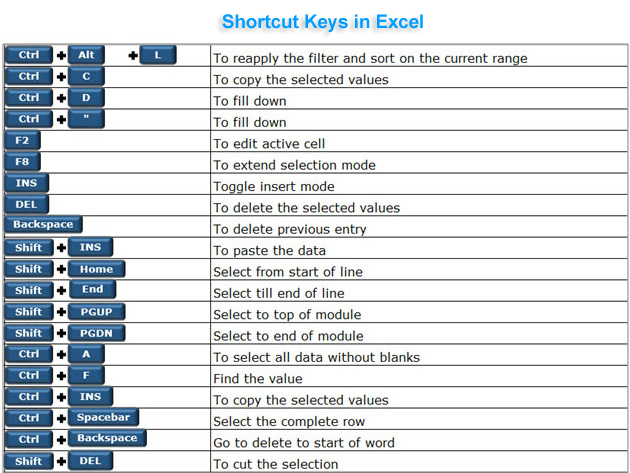
| Shortcut | Description |
|---|---|
| F2 | Edit the selected cell. |
| F3 | After a name has been created, F3 will paste names. |
| F4 | Repeat last action. For example, if you changed the color of text in another cell, pressing F4 will change the text in cell to the same color. |
| F5 | Go to a specific cell. For example, C6. |
| F7 | Spell check selected text or document. |
| F11 | Create chart from selected data. |
| Esc | Cancel an entry in the cell or Formula Bar. |
| Create chart from selected data. | Enter the current time. |
| Ctrl+; | Enter the current date. |
| Alt+Shift+F1 | Insert New Worksheet. |
| Alt+Enter | While typing text in a cell, pressing Alt+Enter will move to the next line, allowing for multiple lines of text in one cell. |
| Shift+F3 | Open the Excel formula window. |
| Shift+F5 | Bring up search box. |
| Ctrl+1 | Open the Format Cells window. |
| Ctrl+A | Select all contents of the worksheet. |
| Ctrl+B | Bold highlighted selection. |
| Ctrl+I | Italic highlighted selection. |
| Ctrl+K | Insert link. |
| Ctrl+S | Save the open worksheet. |
| Ctrl+U | Underline highlighted selection. |
| Shift+Space | Select entire row. |
| Ctrl+Shift+= | Insert a new column or row. |
| Ctrl+Home | Move to cell A1. |
| Ctrl+End | Move to last cell |
| Ctrl+Arrow key | Move to next section of text. |
| Ctrl+Tab | Move between Two or more open Excel files. |
| Ctrl+F4 | Close Window |
| Shift+Page Up | Select To Top Of Module |
| Shift+Page Down | Select To End Of Module |
| Shift+Left Arrow | Extend Selection Left 1 Char |
| Shift+Right Arrow | Extend Selection Right 1 Char |
| Shift+Up Arrow | Extend Selection Up |
| Shift+Down | Arrow Extend Selection Down |
Google Advertisment